Installing Gentoo Linux on Apple Silicon Macs (M1/M2 MacBook Install Guide)

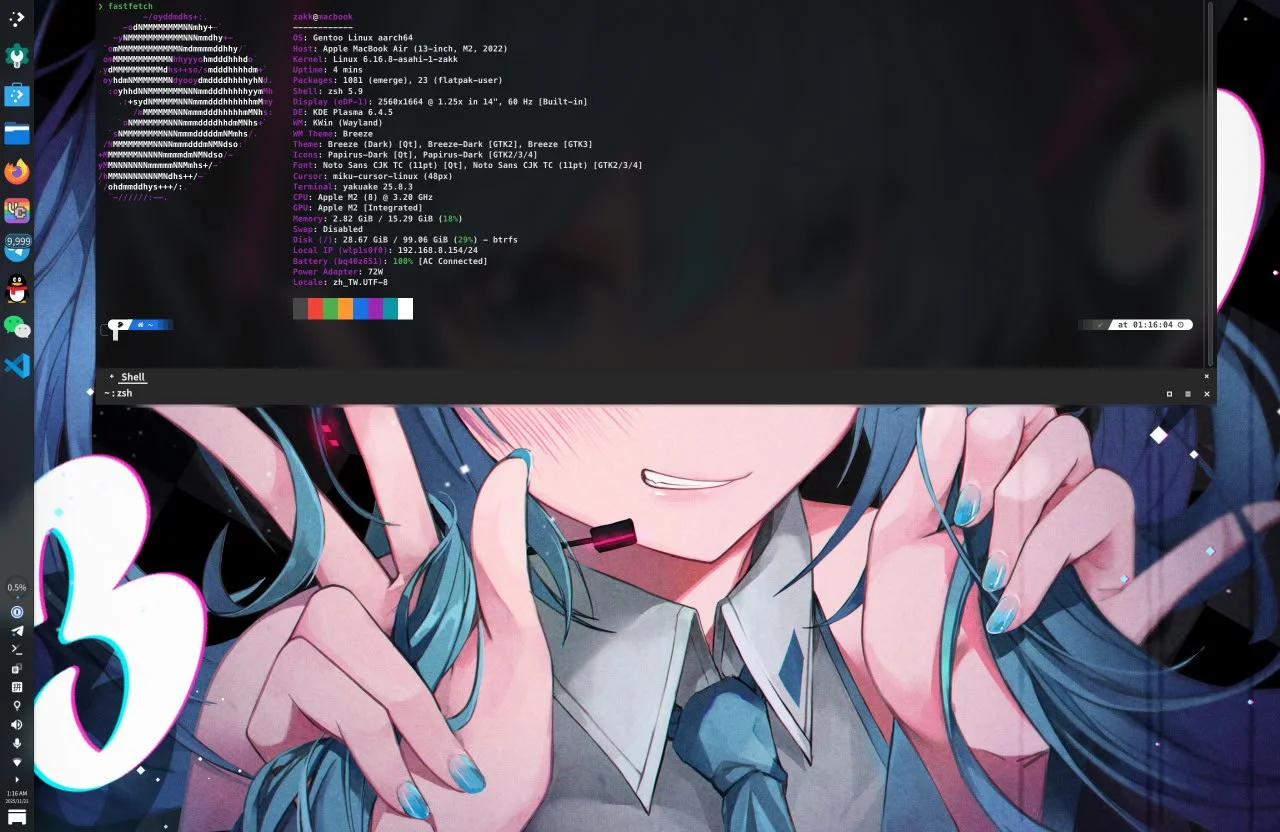
This article documents the complete process of installing native ARM64 Gentoo Linux on an Apple Silicon Mac (the M1/M2 series).
Thanks to the Asahi Linux team (especially chadmed), Gentoo now has an official Asahi installation guide. This article builds on that guide and fills in details from actually doing it.
Hardware support (per the current Asahi Feature Support status):
- M1, M2 (whole lineup): good enough for daily desktop use
- M3: GPU is a work in progress; Wi-Fi / audio and the rest are still TBA, not a good desktop yet
- M4: most of the core drivers are TBA, not usable for now
- M5: not on the official support table yet
This guide is for M1/M2. Last checked: May 29, 2026.
Process Overview
Required steps:
- Download the official Gentoo Asahi live USB image
- Set up U-Boot via the Asahi installer
- Boot from the live USB
- Partition and mount the filesystem
- Extract the Stage3 and chroot
- Install the Asahi support package set
- Reboot to finish the install
Optional steps: LUKS encryption, a custom kernel, PipeWire audio, a desktop environment.
When you’re done you’ll have a macOS + Gentoo Linux ARM64 dual-boot setup on the Mac.
Prerequisites
Hardware Requirements
- An Apple Silicon Mac (only M1/M2 work as a desktop; M3/M4 drivers are incomplete, and M5 isn’t on the official support table yet)
- At least 80 GB of free disk space, 120 GB or more is better
- Stable Wi-Fi or Ethernet
- Back up anything you care about
Known Working Status
Working: CPU, RAM, storage, Wi-Fi, keyboard, trackpad, power management, built-in and external displays, USB-C / Thunderbolt.
Partial support: GPU acceleration (OpenGL is partially supported).
Not working: Touch ID, macOS virtualization.
1. Prepare the Gentoo Asahi Live USB
1.1 Download the Image
Use Gentoo’s own ARM64 live USB directly, no Fedora middleman needed:
https://chadmed.au/pub/gentoo/Go with install-arm64-asahi-latest.iso (a stable symlink chadmed maintains), or pick a dated build so you can reproduce things later. If you hit boot problems, try the previous stable dated build.
1.2 Create the Bootable USB
On macOS:
diskutil list
diskutil unmountDisk /dev/disk4
sudo dd if=install-arm64-asahi-*.iso of=/dev/rdisk4 bs=4m status=progress
diskutil eject /dev/disk4
2. Set Up the Asahi U-Boot Environment
2.1 Run the Asahi Installer
In macOS Terminal:
curl https://alx.sh | shIt’s a good idea to open https://alx.sh and read the script before you pipe it into a shell.
2.2 Follow the Installer
- Choose
r(Resize an existing partition to make space for a new OS) - Allocate space for Linux (at least 80 GB recommended; you can enter a percentage or an absolute size)
- Choose UEFI environment only (m1n1 + U-Boot + ESP)
- Enter
Gentooas the OS name - Shut down as instructed
2.3 Complete the Recovery Setup
- Wait 25 seconds to ensure a full shutdown
- Hold the power button until “Loading startup options…” appears
- Release the power button
- Select Gentoo from the list of volumes
- Enter macOS Recovery and enter your user password (FileVault)
- Follow the prompts to finish setup
If you end up in a boot loop or get asked to reinstall macOS, hold the power button to shut down and start over; or boot into macOS, rerun curl https://alx.sh | sh, and choose p to retry.
3. Boot from the Live USB
Plug in the USB and power on; U-Boot boots GRUB from the USB on its own. If you need to point it there manually:
setenv boot_targets "usb"
setenv bootmeths "efi"
boot
Set up networking (the Gentoo live USB now uses NetworkManager, and nmtui is the quickest way):
nmtui                  # Select a Wi-Fi network or edit a wired connection
ping -c 3 1.1.1.1      # Verify connectivity by IP first (sidesteps DNS issues)
ping -c 3 www.gentoo.org   # Then test DNS
The Apple Silicon Wi-Fi driver is already in the kernel. If it’s flaky, try a 2.4 GHz network.
Optionally enable SSH for remote operation (the live USB uses OpenRC):
passwd                 # Set the root password
rc-service sshd start  # Start SSH (OpenRC command)
ip a | grep inet       # Show the IP address
4. Partitioning and Filesystem
Leave the existing APFS container, EFI partition, and Recovery partition alone. Only work inside the space the Asahi installer set aside.
Inspect the partitions:
lsblk
blkid --label "EFI - GENTO"
A typical layout:
nvme0n1p1   500M    Apple Silicon boot
nvme0n1p2   307.3G  Apple APFS (macOS)
nvme0n1p3   2.3G    Apple APFS
nvme0n1p4   477M    EFI System  (do not touch)
(free)      ~150G   free space for Linux
nvme0n1p5   5G      Apple Silicon recovery
4.1 Create the Root Partition
Use cfdisk /dev/nvme0n1 to create a Linux filesystem-type partition in the free space.
Without encryption:
mkfs.btrfs /dev/nvme0n1p6     # or mkfs.ext4
mount /dev/nvme0n1p6 /mnt/gentoo
With encryption (recommended):
cryptsetup luksFormat --type luks2 --pbkdf argon2id --hash sha512 --key-size 512 /dev/nvme0n1p6
cryptsetup luksOpen /dev/nvme0n1p6 gentoo-root
mkfs.btrfs --label root /dev/mapper/gentoo-root
mount /dev/mapper/gentoo-root /mnt/gentoo
What the parameters do: argon2id resists ASIC/GPU brute-forcing; luks2 works with better security tooling; the M1 has the AES instruction set, so it can hardware-accelerate aes-xts.
4.2 Mount the EFI Partition
mkdir -p /mnt/gentoo/boot
mount /dev/nvme0n1p4 /mnt/gentoo/boot
5. Stage3 and chroot
From here you can follow the AMD64 Handbook up to the kernel installation chapter.
5.1 Download and Extract the Stage3
wget doesn’t do wildcards over HTTPS, so first grab the current Stage3 filename from the latest-stage3-*.txt index file, then download it and verify it with the Gentoo Release Engineering GPG public key:
cd /mnt/gentoo
BASE=https://distfiles.gentoo.org/releases/arm64/autobuilds

# 1. Get the latest Stage3 path from the official index
STAGE3=$(wget -qO- ${BASE}/latest-stage3-arm64-desktop-systemd.txt | grep -v '^#' | cut -d' ' -f1)

# 2. Download the tarball + signature
wget "${BASE}/${STAGE3}"
wget "${BASE}/${STAGE3}.asc"

# 3. Get the Gentoo Release Engineering signing public keys (needed the first time)
gpg --keyserver hkps://keys.gentoo.org --recv-keys 13EBBDBEDE7A12775DFDB1BABB572E0E2D182910 D99EAC7379A850BCE47DA5F29E6438C817072058

# 4. Verify the signature (you must see "Good signature from ...")
gpg --verify "$(basename ${STAGE3}).asc" "$(basename ${STAGE3})"

# 5. Extract (preserve attributes)
tar xpvf "$(basename ${STAGE3})" --xattrs-include='*.*' --numeric-owner
Or pick one by hand with the links text browser:
links https://distfiles.gentoo.org/releases/arm64/autobuilds/current-stage3-arm64-desktop-systemd/5.2 Configure the Portage Repository
mkdir --parents /mnt/gentoo/etc/portage/repos.conf
cp /mnt/gentoo/usr/share/portage/config/repos.conf /mnt/gentoo/etc/portage/repos.conf/gentoo.conf
5.3 Sync the System Clock
chronyd -q
date
A wrong clock makes SSL certificate verification fail and emerge throw errors.
5.4 Mount and Enter the chroot
cp --dereference /etc/resolv.conf /mnt/gentoo/etc/
mount --types proc /proc /mnt/gentoo/proc
mount --rbind /sys /mnt/gentoo/sys
mount --make-rslave /mnt/gentoo/sys
mount --rbind /dev /mnt/gentoo/dev
mount --make-rslave /mnt/gentoo/dev
mount --bind /run /mnt/gentoo/run
mount --make-slave /mnt/gentoo/run

chroot /mnt/gentoo /bin/bash
source /etc/profile
export PS1="(chroot) ${PS1}"
5.5 Edit make.conf
nano -w /etc/portage/make.confCHOST="aarch64-unknown-linux-gnu"
COMMON_FLAGS="-march=armv8.5-a+fp16+simd+crypto+i8mm -mtune=native -O2 -pipe"
CFLAGS="${COMMON_FLAGS}"
CXXFLAGS="${COMMON_FLAGS}"
FCFLAGS="${COMMON_FLAGS}"
FFLAGS="${COMMON_FLAGS}"
RUSTFLAGS="-C target-cpu=native"
LC_MESSAGES=C
MAKEOPTS="-j4"
# The R2 mirror the Asahi community recommends; in mainland China switch to BFSU / USTC / Tsinghua, see /mirrorlist/
GENTOO_MIRRORS="https://gentoo.rgst.io/gentoo"
EMERGE_DEFAULT_OPTS="--jobs 3"
VIDEO_CARDS="asahi"
L10N="zh-CN zh-TW zh en"Set MAKEOPTS to your core count. Keep a trailing newline at the end of the file.
emerge-webrsync
# Choose the time zone for your location: mainland China Asia/Shanghai, Taiwan Asia/Taipei, Hong Kong Asia/Hong_Kong
ln -sf /usr/share/zoneinfo/Asia/Shanghai /etc/localtime
Edit /etc/locale.gen to uncomment the locales you need, then:
locale-gen
eselect locale set en_US.utf8
env-update && source /etc/profile && export PS1="(chroot) ${PS1}"
Create a user:
useradd -m -G wheel,audio,video,usb,input <username>
passwd <username>
passwd root
6. Install the Asahi Support Package Set
This section stands in for the “Installing the kernel” chapter of the official Handbook.
6.1 Method A: Automated Script (Recommended)
emerge --sync
emerge --ask dev-vcs/git

cd /tmp
git clone https://github.com/chadmed/asahi-gentoosupport
cd asahi-gentoosupport
./install.sh
The script turns on the Asahi overlay, installs GRUB, sets VIDEO_CARDS="asahi", installs asahi-meta (kernel, firmware, m1n1, and U-Boot), runs asahi-fwupdate and update-m1n1, then updates the system.
If you hit a USE flag conflict:
# Ctrl+C to interrupt the script
emerge --autounmask-write <conflicting-package>
etc-update              # Usually choose -3 to auto-merge
cd /tmp/asahi-gentoosupport && ./install.sh
Once the script finishes, skip to 6.3 to set up fstab.
6.2 Method B: Manual Install
Set up Portage and the Asahi overlay (synced via git):
emerge --sync
emerge --ask dev-vcs/git
rm -rf /var/db/repos/gentoo

sudo tee /etc/portage/repos.conf/gentoo.conf << 'EOF'
[DEFAULT]
main-repo = gentoo
[gentoo]
location = /var/db/repos/gentoo
sync-type = git
sync-uri = https://mirrors.bfsu.edu.cn/git/gentoo-portage.git
auto-sync = yes
sync-depth = 1
EOF

sudo tee /etc/portage/repos.conf/asahi.conf << 'EOF'
[asahi]
location = /var/db/repos/asahi
sync-type = git
sync-uri = https://github.com/chadmed/asahi-overlay.git
auto-sync = yes
EOF

emerge --sync
Simplified Chinese users can use the BFSU mirror https://mirrors.bfsu.edu.cn/git/gentoo-portage.git. For other mirrors, see the mirror list.
Keep the official dist-kernel from overriding the Asahi version:
mkdir -p /etc/portage/package.mask
cat > /etc/portage/package.mask/asahi << 'EOF'
virtual/dist-kernel::gentoo
EOF
Set up USE flags and VIDEO_CARDS:
mkdir -p /etc/portage/package.use
cat > /etc/portage/package.use/asahi << 'EOF'
dev-lang/rust-bin rustfmt rust-src
dev-lang/rust rustfmt rust-src
EOF
echo 'VIDEO_CARDS="asahi"' >> /etc/portage/make.conf
echo 'GRUB_PLATFORMS="efi-64"' >> /etc/portage/make.conf
Firmware license:
mkdir -p /etc/portage/package.license
echo 'sys-kernel/linux-firmware linux-fw-redistributable no-source-code' \
  > /etc/portage/package.license/firmware
Install:
emerge -q1 dev-lang/rust-bin
emerge -q sys-apps/asahi-meta virtual/dist-kernel:asahi sys-kernel/linux-firmware
Update the firmware and bootloader:
asahi-fwupdate
update-m1n1
You have to run update-m1n1 after every kernel, U-Boot, or m1n1 update.
Install GRUB:
emerge -q grub:2
grub-install --boot-directory=/boot/ --efi-directory=/boot/ --removable
grub-mkconfig -o /boot/grub/grub.cfg
--removable is required so the system can boot from the ESP; --boot-directory and --efi-directory both point at /boot/; and make.conf must have GRUB_PLATFORMS="efi-64".
Optionally, run emerge --ask --update --deep --changed-use @world to update the system.
6.3 Configure fstab
Get the partition UUIDs (adjust to your actual device paths):
# Root partition (unencrypted: use the device directly; encrypted: use the decrypted mapper device)
blkid /dev/nvme0n1p6                    # unencrypted
blkid /dev/mapper/gentoo-root           # encrypted

# EFI partition (the "EFI - GENTO" label set by the Asahi installer)
blkid --label "EFI - GENTO"

nano -w /etc/fstab
UUID=<root-uuid> / btrfs defaults 0 1
# If using ext4, change the third column to ext4
UUID=<boot-uuid> /boot vfat defaults 0 26.4 Configure LUKS (Encrypted Users Only)
Enable systemd’s cryptsetup support:
mkdir -p /etc/portage/package.use
echo "sys-apps/systemd cryptsetup" >> /etc/portage/package.use/fde
emerge --ask --oneshot sys-apps/systemd
Get the LUKS UUID (note this is the UUID of the encrypted container, not of the filesystem inside it):
blkid /dev/nvme0n1p6Edit /etc/default/grub:
GRUB_CMDLINE_LINUX="rd.luks.name=<LUKS-UUID>=gentoo-root root=/dev/mapper/gentoo-root rootfstype=btrfs rd.luks.allow-discards"rd.luks.name=<LUKS-UUID>=gentoo-root: unlock using the LUKS container UUID (blkid /dev/nvme0n1p6) and name the mappergentoo-root, to match crypttab / luksCloseroot=/dev/mapper/gentoo-root: the decrypted btrfs root (so you don’t have to look up the filesystem UUID again)rd.luks.allow-discards: lets SSD TRIM pass through the encryption layer (a security trade-off)
dracut configuration:
emerge --ask sys-kernel/dracut

# Have dist-kernel updates automatically call dracut to rebuild the initramfs (recommended)
echo 'sys-kernel/installkernel dracut' > /etc/portage/package.use/installkernel
emerge --ask --oneshot sys-kernel/installkernel

nano -w /etc/dracut.conf.d/luks.conf
# Leave kernel_cmdline empty; GRUB's GRUB_CMDLINE_LINUX will override it
kernel_cmdline=""
# The crypt module pulls in cryptsetup automatically, no manual install_items needed
add_dracutmodules+=" btrfs systemd crypt dm "
filesystems+=" btrfs "You can optionally write to /etc/crypttab so the system prompts for unlocking automatically:
gentoo-root UUID=<LUKS-UUID> none luks,discardGenerate the initramfs:
# Regenerate the initramfs for all installed kernels (recommended for dist-kernel:asahi)
dracut --force --regenerate-all

# Or target only the currently selected kernel:
# KVER=$(uname -r)   # Doesn't work inside the chroot, run it on the installed system
# dracut --force --kver "${KVER}"

grub-mkconfig -o /boot/grub/grub.cfg
grep initrd /boot/grub/grub.cfg
You have to redo this step after every kernel update. Installing sys-apps/asahi-scripts gives you an installkernel hook that handles it automatically.
7. Finishing Up and Rebooting
echo "macbook" > /etc/hostname
systemctl enable NetworkManager
passwd root
Exit the chroot and reboot:
exit
umount -R /mnt/gentoo
cryptsetup luksClose gentoo-root   # If using encryption
reboot
First boot order: U-Boot → GRUB (pick Gentoo) → (if encrypted) type the LUKS password → login prompt.
8. Post-Install Configuration
8.1 Networking
nmcli device wifi connect <SSID> password <password>
# Or the graphical interface
nmtui
8.2 Desktop Environment
First switch to a suitable profile (the numbers vary between systems, so go by the profile name):
eselect profile list
# Output looks something like:
#   default/linux/arm64/23.0/systemd
#   default/linux/arm64/23.0/desktop/gnome/systemd
#   default/linux/arm64/23.0/desktop/plasma/systemd
#   default/linux/arm64/23.0/desktop (generic, Xfce, etc.)
Pick the number that fits. The examples below (use the actual numbers from your own eselect profile list):
# Pick the number for the desktop/plasma/systemd line, for example:
eselect profile set default/linux/arm64/23.0/desktop/plasma/systemd
emerge -avuDN @world
KDE Plasma:
emerge --ask kde-plasma/plasma-meta kde-apps/kate kde-apps/dolphin
systemctl enable sddm
GNOME:
eselect profile set default/linux/arm64/23.0/desktop/gnome/systemd
emerge -avuDN @world
emerge --ask gnome-base/gnome gnome-extra/gnome-tweaks
systemctl enable gdm
Xfce:
eselect profile set default/linux/arm64/23.0/desktop
emerge -avuDN @world
emerge --ask xfce-base/xfce4-meta x11-misc/lightdm
systemctl enable lightdm
The first build of a desktop environment takes about 2–4 hours; stick to --jobs 3 or fewer to avoid OOM.
8.3 Fonts and Chinese Input
emerge --ask media-fonts/liberation-fonts media-fonts/noto media-fonts/noto-cjk media-fonts/dejavu
eselect fontconfig enable 10-sub-pixel-rgb.conf
eselect fontconfig enable 11-lcdfilter-default.conf

emerge --ask app-i18n/fcitx-chinese-addons
In testing, app-i18n/fcitx-rime doesn’t work right in the current version; use fcitx-chinese-addons instead.
8.4 Audio
emerge --ask media-libs/asahi-audio

# If PulseAudio is installed, stop it first to avoid conflicts
systemctl --user disable --now pulseaudio.socket pulseaudio.service 2>/dev/null

# Enable PipeWire (socket-activation; the pipewire daemon starts on demand)
systemctl --user enable --now pipewire-pulse.socket
systemctl --user enable --now wireplumber.service
9. System Maintenance
Update regularly:
emerge --sync             # Includes the Asahi overlay
# Or sync only the overlay
emaint sync -r asahi
emerge --ask --update --deep --newuse @world
emerge --ask --depclean   # Confirm the packages to be removed before running
dispatch-conf             # Handle .__cfg config changes
Mandatory after every kernel update:
update-m1n1
grub-mkconfig -o /boot/grub/grub.cfg
m1n1 Stage 2 holds the devicetree blobs the kernel needs to detect hardware. sys-apps/asahi-scripts provides an installkernel hook that can automate this.
macOS updates ship firmware updates with them, so keep the macOS partition around to pull the latest firmware.
10. Troubleshooting
Can’t boot from USB: U-Boot’s USB driver is picky. Try a different USB drive, a USB 2.0 device, or go through a USB hub.
Boot hangs or black screen: m1n1 / U-Boot / kernel versions don’t match. Rerun curl https://alx.sh | sh from macOS and choose p, and make sure you ran update-m1n1 inside the chroot.
Encrypted partition won’t unlock: check GRUB_CMDLINE_LINUX in /etc/default/grub, double-check the LUKS UUID (blkid /dev/nvme0n1p6), and rerun grub-mkconfig -o /boot/grub/grub.cfg.
Wi-Fi is unstable: usually a WPA3 or 6 GHz band issue. Switch to WPA2, 2.4 GHz, or 5 GHz.
Trackpad dead:
dmesg | grep -i firmware
emerge --ask sys-apps/asahi-meta
11. Advanced Options
The notch: add this to the GRUB kernel parameters
appledrm.show_notch=1(Before Asahi kernel 6.18 it was apple_dcp.show_notch=1; as of 6.18 the apple_dcp module got renamed to appledrm.)
In KDE Plasma you can add a full-width panel at the top and line its height up with the bottom of the notch.
Custom kernel:
emerge --ask sys-kernel/asahi-sources
cd /usr/src/linux
make menuconfig
make -j$(nproc)
make modules_install
make install
update-m1n1
grub-mkconfig -o /boot/grub/grub.cfg
Keep a working kernel around as a fallback.
Switching between kernels:
eselect kernel list
eselect kernel set <number>
update-m1n1
References
- Gentoo Wiki: Project:Asahi/Guide
- Asahi Linux official site
- Asahi Linux Feature Support
- Gentoo AMD64 Handbook
- asahi-gentoosupport
- Gentoo Asahi Releng
- User:Jared/Gentoo On An M1 Mac
Community support:
- Telegram group: @gentoo_zh
- Telegram channel: @gentoocn
- GitHub
- Gentoo Forums
- IRC
#gentoo/#asahi@ Libera.Chat - Asahi Linux Discord